First setup
Evey is running, and you opened its address in a browser, for example
http://192.168.1.20:9091 (not sure which address:
Step 3 of Install).
Four steps remain before your household can watch:
- The setup wizard: about a minute.
- Add your libraries: tell Evey where your media is.
- Invite your household: one account each, or one shared account with a profile per person.
- Connect the apps: phones, tablets and TVs.
1. The setup wizard
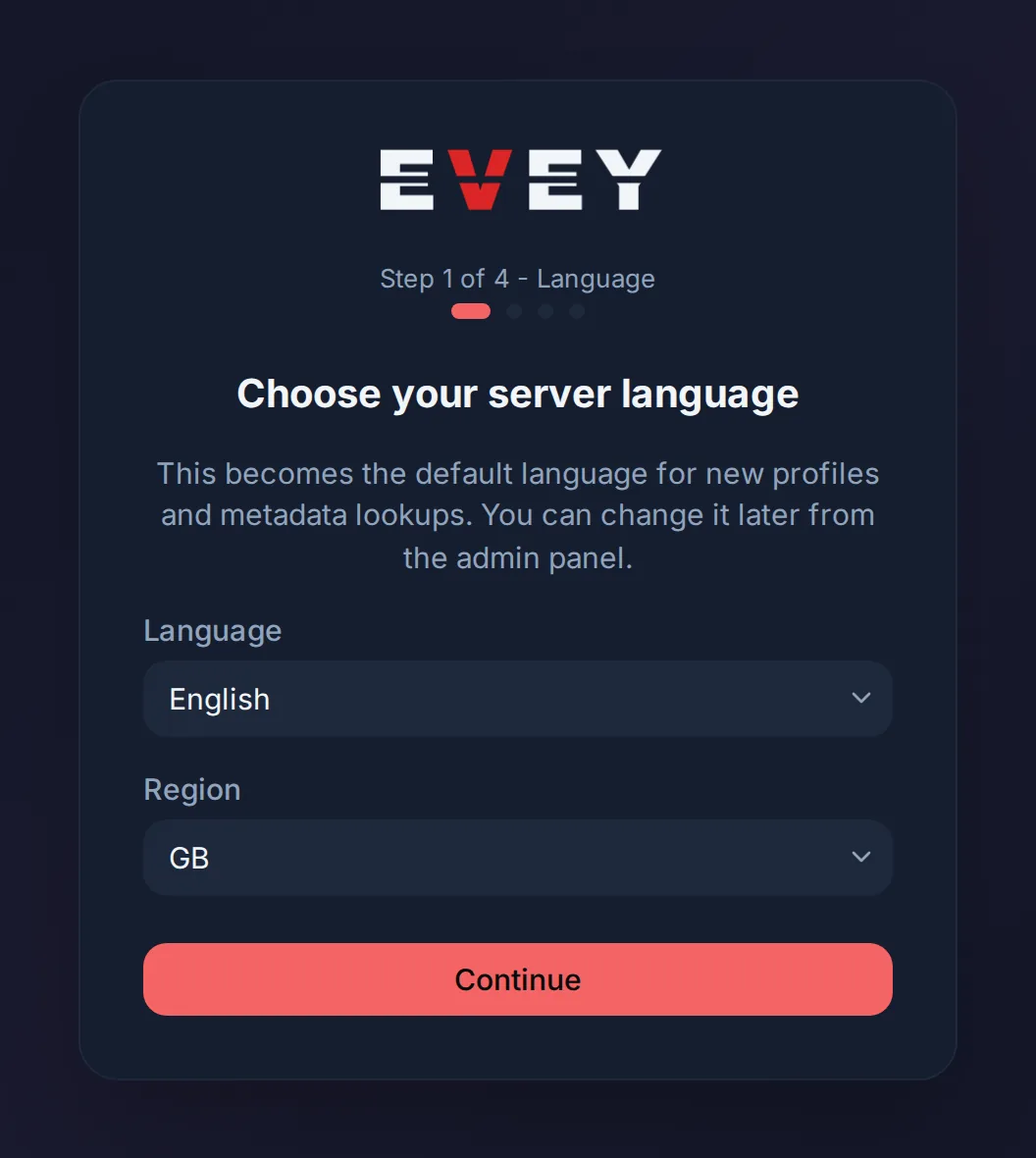
Until the server has an administrator, its address always opens the wizard. It shows Step 1 of 4 - Language at the top, and four dots that fill in as you go.
Step 1 of 4 - Language
The card says Choose your server language. Pick:
- Language: the default language of new profiles, and of the titles and summaries Evey fetches. The wizard switches to it at once.
- Region: filled in from the language. It decides which age ratings are shown. Automatic is available.
You can change both later in the admin panel. Press Continue.
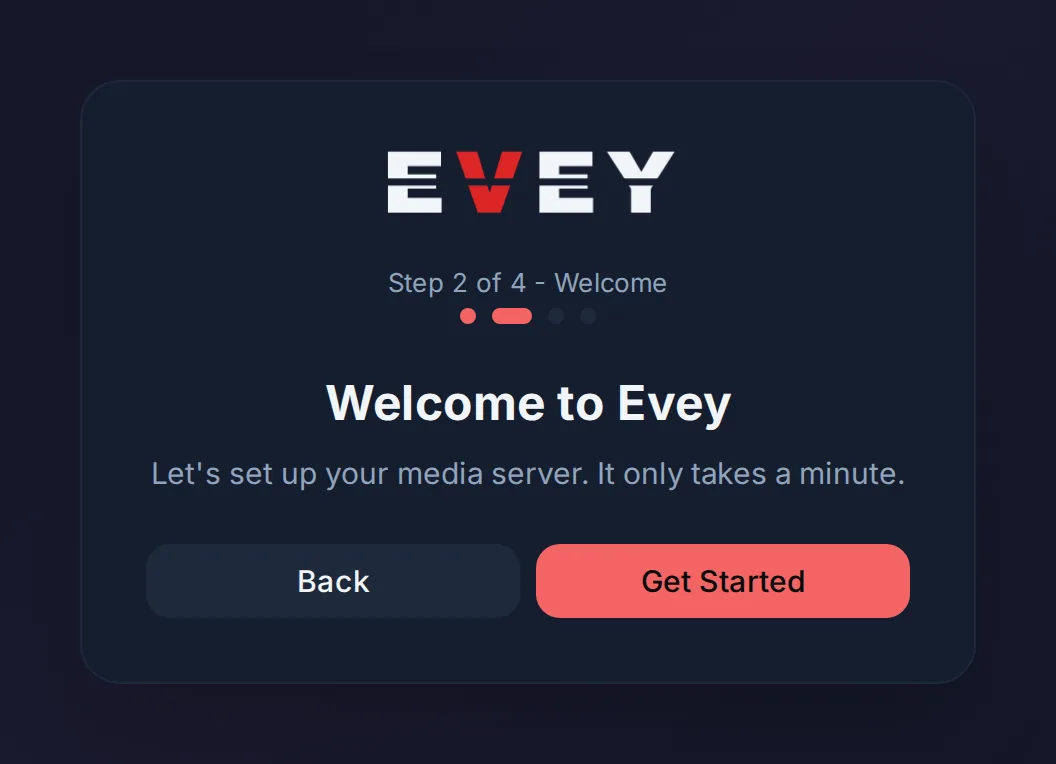
Step 2 of 4 - Welcome
Nothing to fill in. Press Get Started.
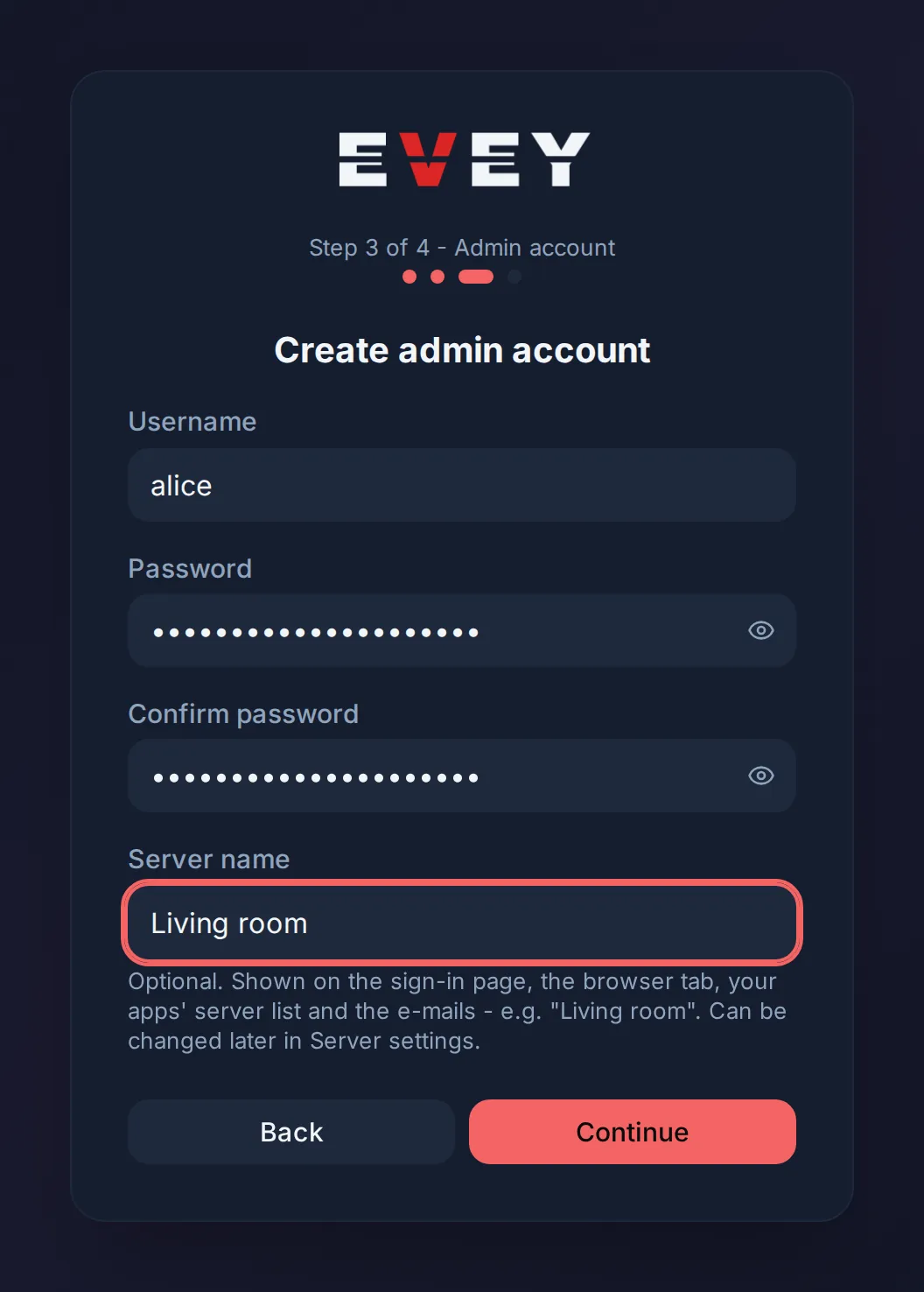
Step 3 of 4 - Admin account
The card says Create admin account. This is your own account, the one that manages the server.
| Field | What to type |
|---|---|
| Username | At least 3 characters. |
| Password | At least 8 characters. |
| Confirm password | The same password again. |
| Server name | Optional. A name such as "Living room". People see it on the sign-in page, in the browser tab, in the apps' list of servers and in e-mails. You can change it later in Admin → Server Config → Server Name. |
Press Continue. Evey creates the account and signs you in. The wizard will not appear again.
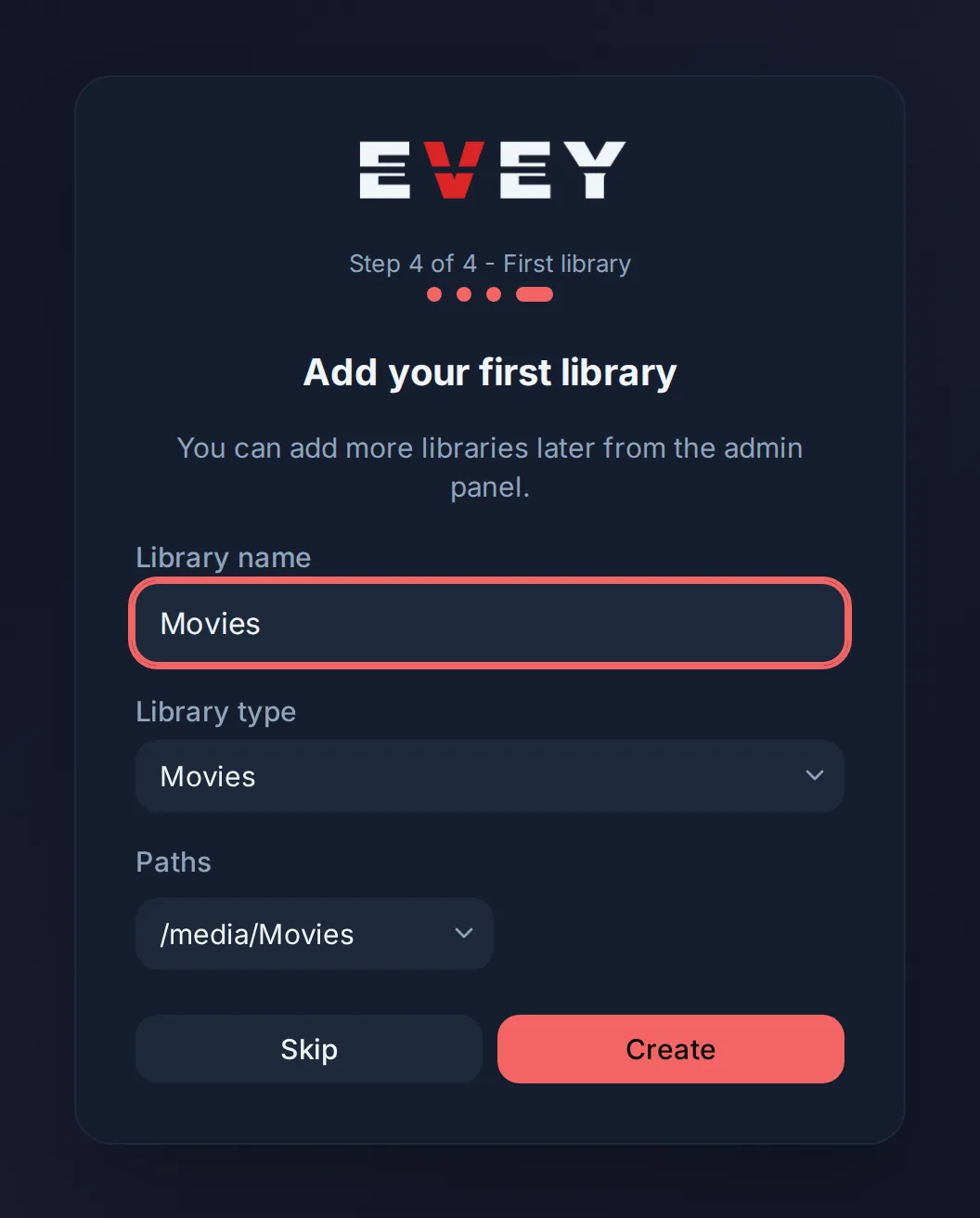
Step 4 of 4 - First library
The card says Add your first library. A library is one kind of media in one or more folders, for example "Films".
- Library name: for example "Films".
- Library type: Movies, Shows, Music or Photos.
- Paths: pick a folder from the list. It shows the folders Evey can see,
starting with
/media. To type a path such as/media/movies, choose Enter custom path....
Press Create: Evey starts reading the folder, and titles appear as the scan goes (a large folder takes a few minutes). Or press Skip and add libraries later. Both take you to the home page.
If the wizard does not appear, or appears twice
Once an administrator exists, the address opens the sign-in page, and
/setup sends you there too. If two people open the wizard at the same
time, only the first one gets the administrator account: the second is
sent to the sign-in page.
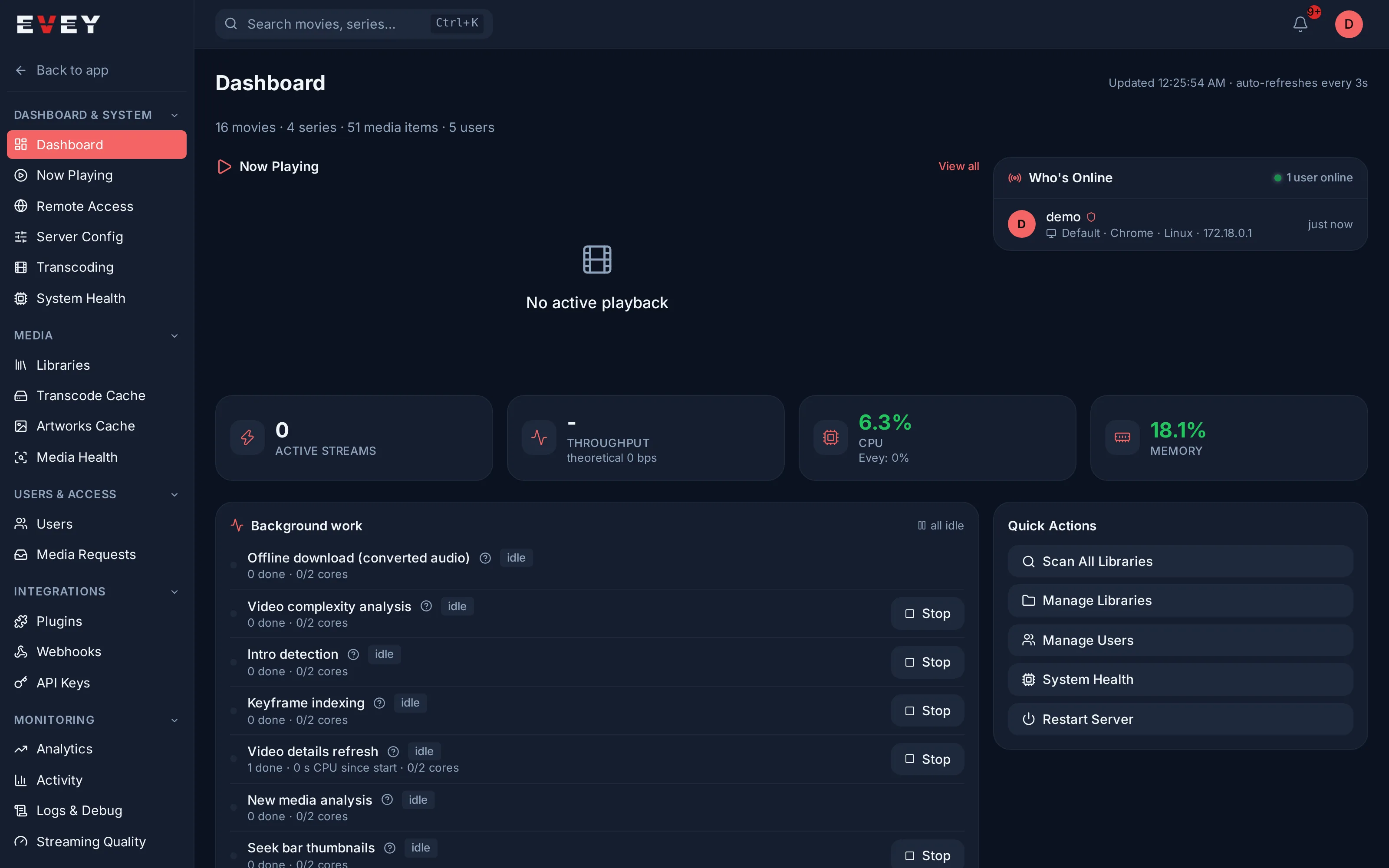
2. Add your libraries
Go to Admin → Libraries → Add Library. Give a name, a type (Movies, Shows, Music or Photos) and one or more folders.
The folders are named as Evey sees them, not as they are on your computer.
With the compose file from Install,
your media folder is /media. So a folder /srv/media/films on your
computer is /media/films in Evey.
Evey starts reading the folder by itself, and titles appear as the scan goes. Posters, summaries and cast arrive in the background, so a large library fills in over a few minutes. New files you add later appear on their own.
Your titles do not show up, or show the wrong poster? See Libraries and metadata: how to name files, and how to fix a wrong match.
3. Invite your household
There are two ways to give someone an account, both in Admin → Users.
Send an invitation link (the person picks their own password):
- Open the admin panel from the address the others will use, for example
http://192.168.1.20:9091, nothttp://localhost:9091. The link is built from the address in your browser. - Press Create Invite Link. You can limit how long it works (Expires at (optional)), how many times it can be used (Max uses (empty = unlimited)) and which libraries the new account sees (Accessible libraries).
- In Invite Links, press Copy Link and send it by message or e-mail.
- The person opens the link, sees You've been invited! Fill in your details below., picks a username and a password (at least 8 characters), and is signed in.
Or create the account yourself: press Create User, choose the Username and the Password, and give them to the person.
Every account starts with one profile, named after the username. A household can share one account, with one profile per person: add them from Settings → Profiles → Create Profile. For a child, tick Kids profile and choose a Max age rating. Every other profile of that account then needs a PIN (4 digits), so that the child cannot switch to it.
Then send each person three things: the address, their username and password (or the invitation link), and the page written for them, Watching with Evey.
More options (limits per account, opening hours, PINs, age limits): Users, profiles and parental control.
4. Connect the apps
- In a browser, there is nothing to install: it is the address you already opened.
- On an Android phone, tablet or TV, the app asks for the server address
first. Type the same address as in the browser, with
http://and the port, for examplehttp://192.168.1.20:9091. Then sign in. - On a TV, you can sign in with a code approved from your phone, instead of typing a password with the remote.
Step by step, and what each error message means: Connect the apps.
What the server does by itself
You do not need to set any of this:
- How each device plays a file. Each device tells the server what it can play. For each title, the server then sends the file as it is, repackages it, or converts only what the device cannot play. See How playback is decided.
- How many people it can serve. At its first quiet moment, the server measures how much video it can convert at once, with the processor and any graphics card, and never accepts more. This takes a few minutes. Meanwhile, a playback that needs a conversion is asked to wait. See Transcoding and server capacity.
- Access from outside your home. Off until you give the server a public address. See Remote access and HTTPS.
- A safety copy of the database before every update that changes it. Regular backups are one setting away: Backups and updates.
Before you share the address outside your home
- Put the server behind HTTPS. Evey itself only speaks plain HTTP, which is fine at home but not over the internet. Remote access and HTTPS.
- Set a backup schedule, and keep a copy of the
evey-datafolder. It holds the database and the key that protects every sign-in. Backups and updates.