Users, profiles and parental control
Two words matter on this page:
- An account is what signs in: a username and a password.
- A profile is a person who watches. Each profile has its own history, resume points, favourites, languages and home page.
An account can hold several profiles. Most households share one account, with one profile per person. You can also give each adult their own account.
This page starts with the common tasks: add someone, add a child. The finer controls (limits per account, opening hours, requests, the home page, download links) come after.
Accounts and profiles
An account has a username and a password, or signs in through single sign-on (see OIDC). It is either an administrator or a normal account. Every new account starts with one profile, named after its username.
Create an account
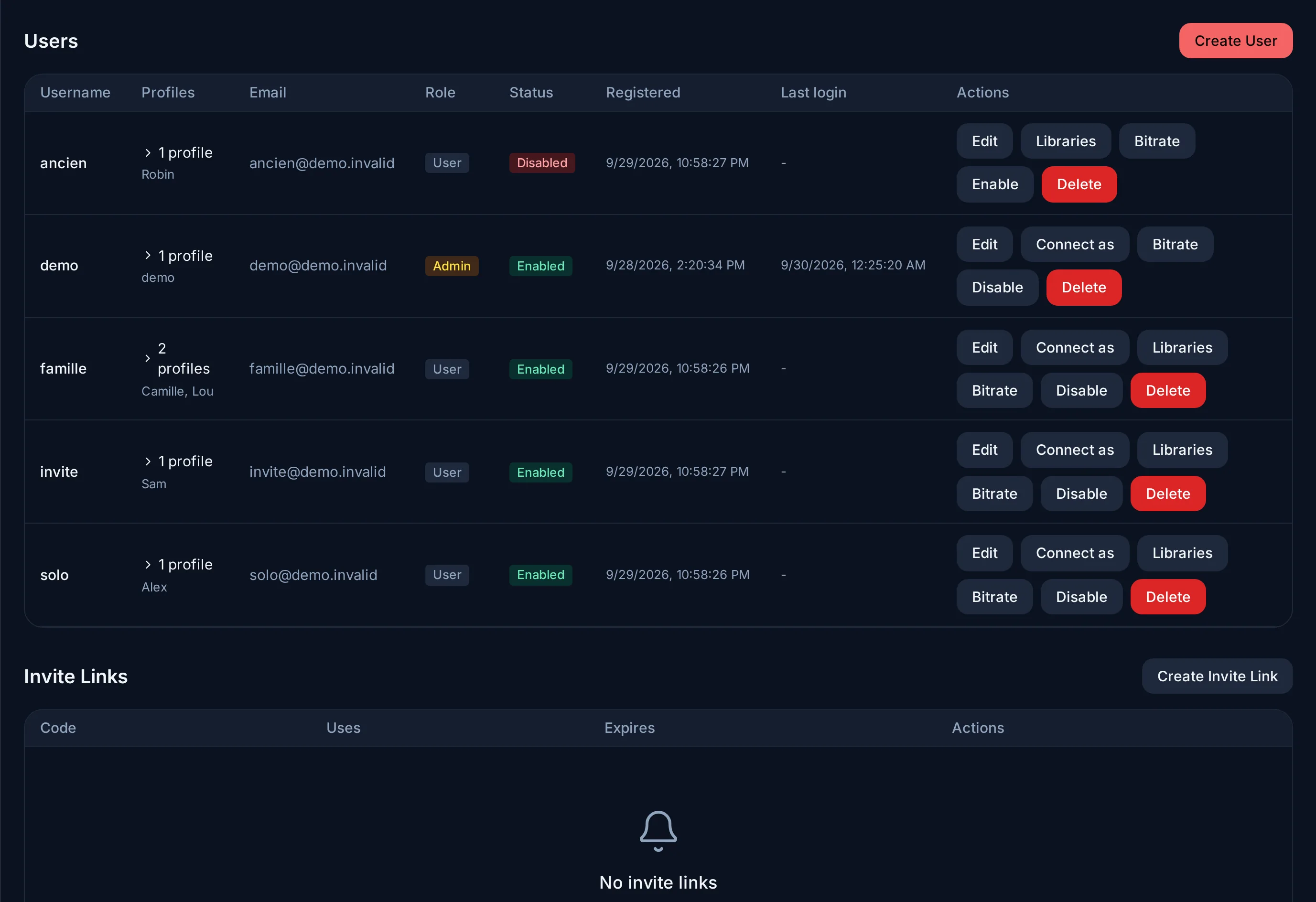
Go to Admin → Users. There are two ways.
Send an invitation link, so the person picks their own password:
- Press Create Invite Link.
- Optionally, limit it: Expires at (optional), Max uses (empty = unlimited), Accessible libraries (the libraries the new account will see), and the number of profiles it may create. Tick Create as administrator only for someone who will manage the server with you.
- Under Invite Links, press Copy Link and send it.
The link is built from the address in your browser. Open the admin panel
from the address the others will use (for example
http://192.168.1.20:9091), not from localhost. Revoke stops a link
from working.
Or create the account yourself: press Create User, choose the Username and the Password, and give them to the person. Tick Admin for an administrator. You can also set the libraries, the number of profiles and the number of devices right away (see What an administrator can restrict per account).
On an account's row:
- Disable blocks its sign-ins without deleting anything. Enable lets it back in.
- Delete removes the account and its profiles.
Profiles, kids profiles and the PIN
To add a profile: from that account, go to Settings → Profiles → Create Profile. An administrator can also add one to any account, from Edit User → New profile. A profile has a Name, a Language and a Region.
To add a child's profile:
- Create the profile and tick Kids profile.
- Choose a Max age rating. If you leave Default (12+), the limit is 12.
- Give a PIN (4 digits) to every other profile of the account. The server requires it as soon as a kids profile exists, and refuses to save a profile without one.
What the child then sees:
- The kids profile opens without a PIN.
- Leaving it for another profile asks for that profile's PIN.
- Titles above the age limit never appear (see Age limits).
PIN details and who can manage profiles
- Setting a PIN for the first time asks for the account password. Changing it asks for the current PIN. Settings → Parental sets the PIN of the profile in use.
- Profiles and parental settings can only be managed from a profile that is not a kids profile.
- An administrator's account cannot have a kids profile: the limit would hide part of the administrator's own library.
Age limits
The server, not the app, applies the age limit. A title above the limit is not just hidden on screen: it is never sent to the kids profile. This holds for browsing, search, playback and downloads.
- Which ratings are used. The age is read from the rating system of the profile's Region (Settings → Profiles → Edit). With Automatic, the region comes from the profile's language, and the British system is used when that does not help.
- A title without a usable rating is hidden from the kids profile rather than shown.
- When in doubt, no. If the server cannot read a profile's settings (a database error, for example), it refuses the content instead of allowing it.
- Downloads too. A film downloaded to a phone keeps its limit offline: a kids profile cannot open a download made by another profile if it is above its age limit.
Administrators are not subject to profile limits.
What an administrator can restrict per account
These settings are in Create User and Edit User, and on the account's row in Admin → Users.
| Setting | What it does |
|---|---|
| Library Access (the Libraries button on the row) | The libraries the account sees. The others do not appear anywhere for it: not in search, not on its home page. An administrator always sees everything. |
| Max Bitrate (the Bitrate button) | Limits the video quality the account receives, one of six presets from 1 to 40 Mbps, or Unlimited. A title above it is converted down to it. |
| Max profiles | How many profiles the account may create (0 = no limit). |
| Max devices per profile | How many videos each profile may play at the same time, across its devices (0 = no limit). One more is refused when it starts. |
Connect as shows the server exactly as that user sees it. Use it to check a restriction or to see a problem for yourself. A banner stays on screen, and Exit takes you back to your own account.
Opening hours
You can let a kids profile watch only at certain hours.
- In Settings → Profiles, press the clock icon next to the kids profile.
- Turn on Limit to opening hours. Evey suggests weekdays 18:00 to 22:00, and Saturday and Sunday 9:00 to 12:00 and 14:00 to 21:00.
- Adjust the hours, either with Weekdays / weekend (one block for Monday to Friday, one for the weekend) or Day by day.
A day can have several time ranges. A range can go past midnight (20:00 to 0:30). A day with no range is closed.
What happens:
- Outside the hours, the profile is closed everywhere: browsing, films, music, downloads. Every app shows a lock screen saying when it opens again.
- Ten minutes before closing, the player shows a warning. At closing time, playback stops.
- To let the child in anyway, type the Parent PIN on the lock screen: the PIN of a profile of the same account that is not a kids profile. It opens the kids profile until its next opening. The child's own PIN does not work there. Switch profile goes back to the profile list.
Time zone and edge cases
- The server applies the hours in its own time zone: Admin → Server
Config → Language & Region → Server time zone (if empty, the
TZvariable, then Europe/Paris). Changing the clock on a tablet changes nothing. - Going back from Day by day to Weekdays / weekend is refused when the days of a block differ, so nothing is lost by accident.
- A schedule the server cannot read keeps the profile closed.
- A downloaded film played without a connection never reaches the server, so the hours do not apply to it.
Requests
People can ask for a film, a series or an artist you do not have yet. Their requests arrive in Admin → Media Requests. For each one, choose Approve, Reject or Later, and add a note if you like. The person is notified of your answer.
To choose who may ask, open the Access tab: Allow requests by default for all users, then Per-user overrides for exceptions.
The home page
The home page is a stack of rows. A row with nothing to show is hidden.
| Row | What it shows |
|---|---|
| Resume Playback | What the profile started and has not finished, most recent first. A title counts as watched at 90 %. |
| Up Next | For each series the profile has started, the next episode not yet watched. |
| Collections | The collections, with a link to the full list. |
| Recommended For You | Films and series in the genres the profile watches most, best match first, then by rating. A genre counts when it appears in at least 3 of the profile's last 200 playbacks. |
| Most Popular | The films and series played most on the server over the last 90 days. |
| One row per library | The latest additions to that library, newest first. |
Recommended For You and Most Popular leave out what the profile has already finished. A series counts as finished once every episode is watched. Plugins can add their own rows.
Who decides the rows:
- You set the default for every profile in Admin → Server Config → Home feeds: which rows appear, in what order, and how many items each shows.
- Each profile can then arrange its own home with Customize (on the home page of the web and phone apps, in the top bar of the TV app): show or hide a row, move it, or Reset to Defaults. This is saved on the server and follows the profile to every device.
- A profile can show a row you have hidden, except a plugin's row: there, your choice is final.
Public download links
On a film or episode page, an administrator can create a Public download link (web and Android apps). Anyone who has the link can download the original file, without an account. The link is copied for you to paste.
- It stops working after 48 hours.
- With remote access off, it only works from your home network.
- Whoever holds the link can download the file until it expires: share it as carefully as the file itself.
Through the server API
Only administrators can create, list and revoke links. The apps only
create them; listing and revoking go through the API
(GET /api/v1/admin/share-links, DELETE /api/v1/share-links/{id}).
Through the API, a link can last up to 72 hours and be limited to a
number of downloads (POST /api/v1/media/{id}/share).