Monitoring and logs
Where to see what the server is doing, for the administrator who wants to check on it rather than fix something: from what plays right now to the statistics of the month, with the logs in between. For a symptom to investigate, start with Troubleshooting.
What is playing now
Admin → Now Playing lists every stream in progress: who, what, on which device, and how, track by track (copied, transcoded, and the backend encoding it). An administrator can Stop a session or Send message to the viewer.
The dashboard's Who's Online card lists who is connected right now, by profile, with how long ago each app was last heard from. A Chromecast whose television keeps Evey's receiver loaded stays listed after its playback has ended and left Now Playing; Stop this Chromecast sends it a stop command, which the television applies in about 30 seconds.
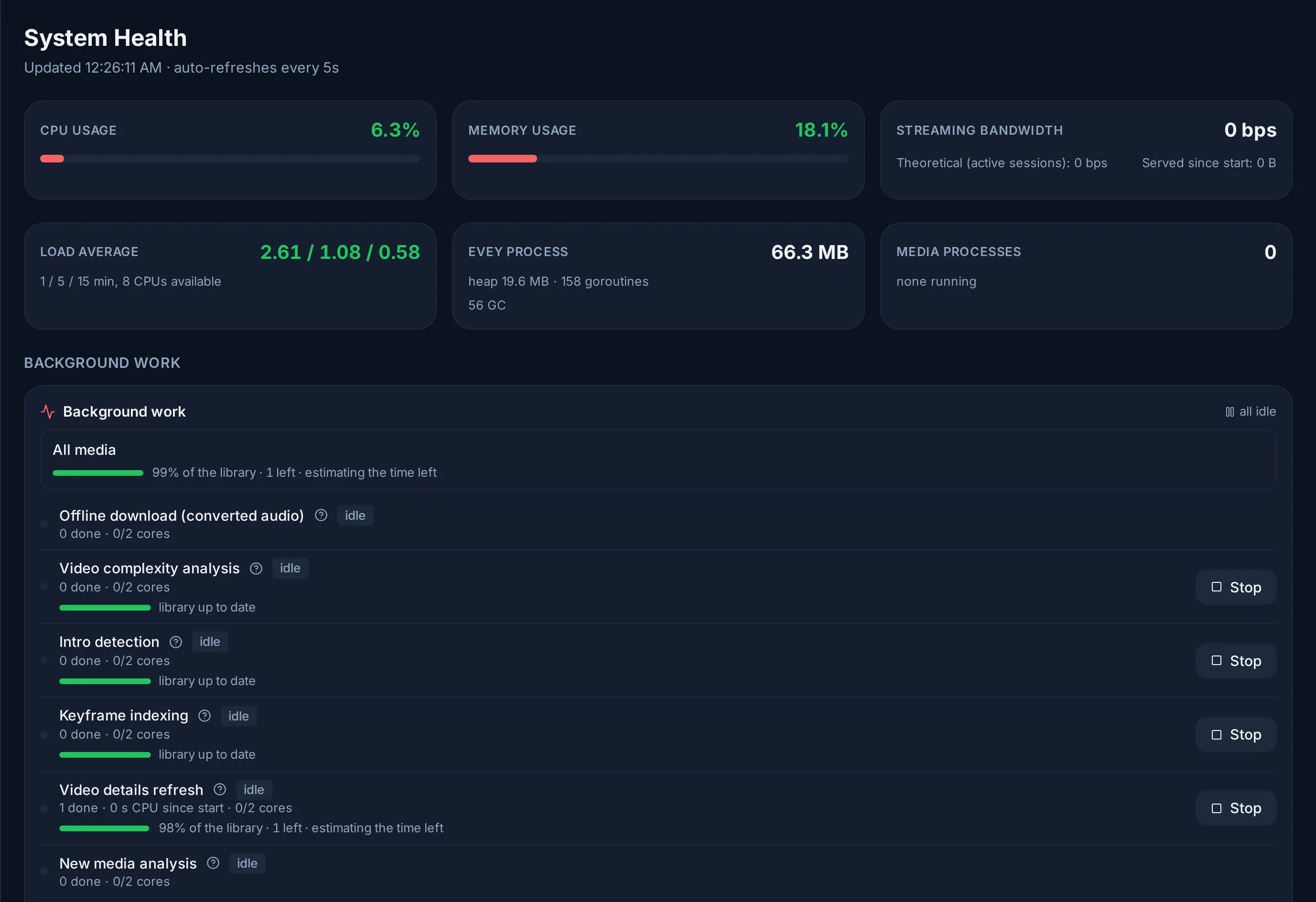
Admin → System Health shows the processor, memory, bandwidth and storage, and how much of the transcoding capacity is in use. It also lists the machine's disks, each with the mean time a request waited over the last minute, its busy share and its read and write rates. The wait is the figure to watch: a disk can be 100 % busy and keep up, while one that makes every request wait several times longer than it does at rest is what turns playback into buffering, even when the processor looks idle. A disk is marked Saturated when its wait is at least 20 ms and at least 2.5 times its wait at rest, with either the disk busy or the processor waiting on it. The CPU card says how much of the processor's time was spent waiting on disks.
Trends under the live cards draws the last 24 hours, 7 days or 30 days from the samples the server records once a minute: processor and disk wait, memory, the disk wait with its rest and saturation lines, the disks' busy share and throughput, network in and out beside the streaming actually served, streams and transcodes, and how full the library disks are. Processor, disk and network figures are the whole machine's; a copy or a neighbouring service reading the same disks shows there too. The dashboard carries a Disks tile with the disk that waits the most.
Logs
Admin → Logs & Debug searches the server's log and follows it live (Live), narrowed with Where to one area (player and transcode, seek index, subtitles, intro detection, Chromecast, auth, infrastructure...). It is the first place to look when a user reports a problem.
The same log is on disk, one JSON file per day in ./evey-data/logs/
(/data/logs/evey-YYYY-MM-DD.log in the container), plus an hour-suffixed
file (evey-YYYY-MM-DD-HH.log) when a file passes 50 MB
(EVEY_LOG_MAX_SIZE_MB), kept 90 days by default.
docker compose logs evey shows only what the container prints while it
starts, which is what to read when the server does not come up. See
Troubleshooting.
How playback actually went
Admin → Streaming Quality is built from what the players report while they play (buffer level, rebuffering, throughput, in the CMCD format): how often viewers waited, the titles that stall most, and the kinds of device that struggle, over the last day or week.
The server also acts on it. When one kind of source keeps making viewers wait, it lowers the maximum quality for that kind of source for a while, on top of the calibrated ceiling, then lifts the limit again on its own. The active limits are listed under Automatic quality limits, with the reason and the expiry; Reset drops one immediately.
History and statistics
- Admin → Analytics: plays today and this week, active users, the most watched titles of the last 30 days.
- Admin → Activity: the history of plays and of administrative actions, and the background work in progress.
How long each kind of history is kept is set in Admin → Server Config → Data & retention (play sessions, audit log, server metrics, streaming quality). A change applies at the next daily cleanup.
Prometheus metrics
GET /metrics serves the server's counters in the Prometheus text format, all
named evey_.... It answers a fixed token set in EVEY_METRICS_SCRAPE_TOKEN and sent as
Authorization: Bearer <token>, so that Prometheus or Grafana can scrape from
anywhere without signing in; an administrator session is accepted only from
the container's own loopback
(Backups, logs and monitoring). The
families worth a first chart:
| Metric | What it tells |
|---|---|
evey_transcodes_active, evey_transcode_queue_depth |
Background transcode jobs (outside live playback) running, and waiting for a slot. |
evey_hlsvod_sessions_active, evey_hlsvod_sessions_rejected_total |
FFmpeg processes producing playback segments, and starts refused because the server was at its limit. |
evey_hlsvod_cache_size_bytes, evey_hlsvod_cache_evicted_bytes_total |
Size of the segment cache on disk, and what the sweeper freed. |
evey_mkvgo_walks_in_flight, evey_mkvgo_plan_stats |
The in-process packager: windows being read, queued reads (stat="slot_waits"), see MKVGo in Evey. |
evey_http_requests_total, evey_http_request_duration_seconds |
Requests and latency by method and path. |
evey_watcher_alive, evey_scan_queue_depth |
Whether each library's folder watcher answered its last check (1 or 0), and files waiting to be scanned. |
Command line
evey admin doctor checks the whole server in one report; the other
diagnostic commands are listed in Command line.