Backups and updates
Two habits keep your server safe:
- Back up. Turn on a daily backup of the database, and keep a copy of
the
evey-datafolder somewhere else. - Update. One command fetches the new version. Evey saves the database first, by itself, whenever an update changes it.
This page shows both, then what a backup holds, how to restore one, and how to go back to an older version.
Schedule backups
- Go to Admin → Database Backup, card Schedule.
- In Cron expression, say when to run.
0 3 * * *means every day at 3 AM. (The format is minute, hour, day, month, day of the week.) - In Retention (days), say how long to keep each backup, for example
30. Older backups are deleted after each scheduled run. - Tick Enabled, then press Save.
Run now makes a backup immediately, and so does Create Backup at the top of the page.
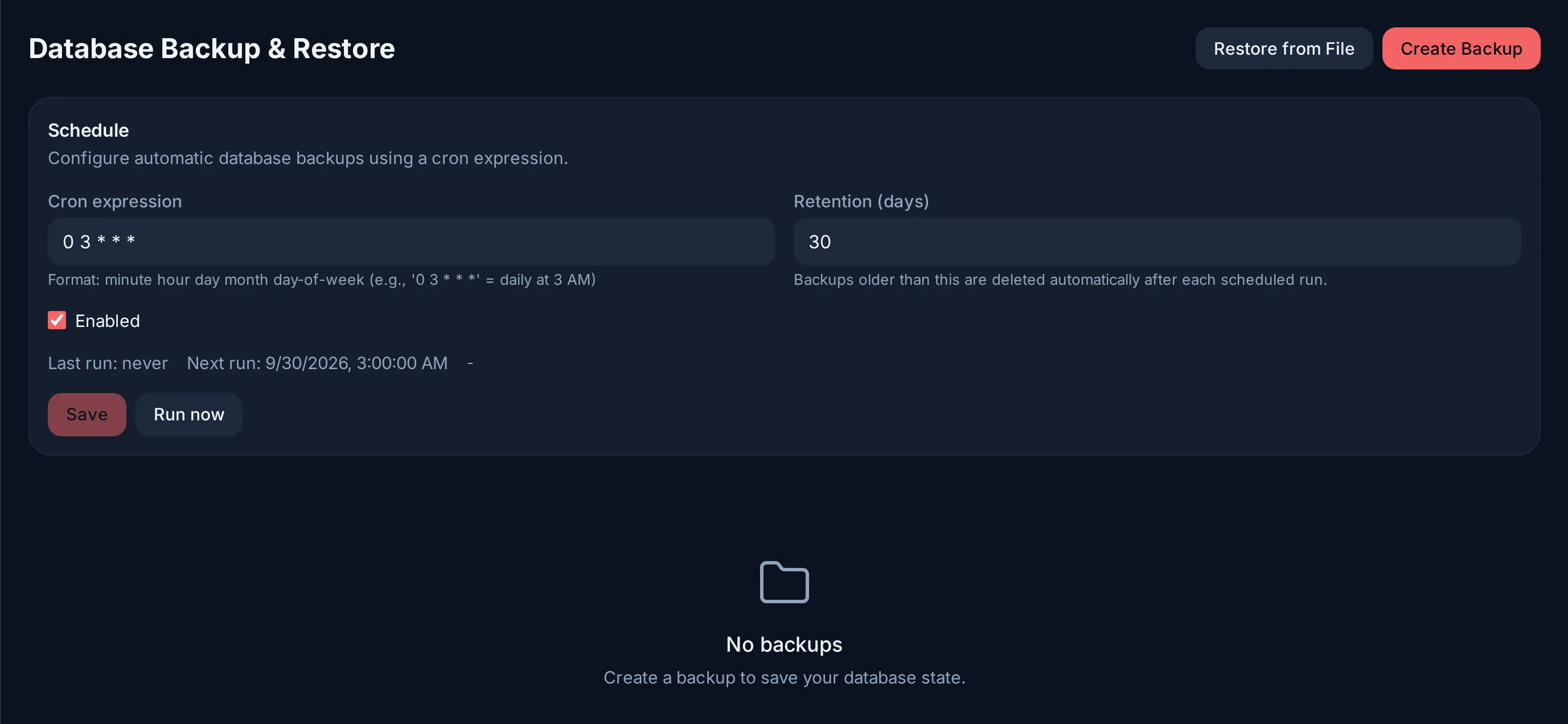
Backups are saved in ./evey-data/backups. That is inside the folder you
should copy to another disk anyway (see
What a backup contains).
From the command line
A script or a cron job on the host can make the same backup:
It follows the telemetry switch of the panel (below);
--include-telemetry includes the telemetry for that run only.
The server also saves the database by itself before an update changes it, whatever the schedule (see Updating Evey).
What a backup contains
A backup is a copy of the database: accounts, profiles, libraries and their catalogue, watch history and resume points, collections, playlists and favourites, settings, plugin records, webhooks, API keys, notifications and audit logs.
It does not contain:
- your media files;
- the video cache (it fills up again by itself);
- the search index (rebuilt from the database);
- the keys kept in
./evey-data:jwt.key, which protects every sign-in, thekeysfolder (database password, search key), andhls_aes.key, the key that encrypts streaming segments (created at first boot, mode 0600); - the installed plugin files.
So keep a copy of the whole ./evey-data folder too. A database backup
restores Evey on the same installation. To rebuild a machine from scratch,
you need the folder.
Telemetry, and the file format
Playback and server measurements (behind the quality and load charts) are left out by default: they grow fastest and say nothing about your catalogue. Include telemetry in backups (Admin → Server Config) puts them back in, for manual, scheduled and command-line backups. Restoring a backup always empties those tables.
A backup is a .tar.gz file holding the database dump and a short
description with its checksum (SHA256) and its schema version.
Restore a backup
Admin → Database Backup lists the backups. Restore one from the list, or upload a file with Restore from File. Restoring replaces the current database: everything since that backup is lost.
Only a backup from a version with the same database layout
The server first checks the file and the database layout (the schema version). It refuses a backup taken by a version with a different layout, instead of loading it. To go back to an older version with its data, see Going back.
If the server no longer starts, the command line can restore the safety
copies taken before an update (pre-migration-*.sql.gz), not the .tar.gz
backups of this panel: see Recovery.
Updating Evey
In the folder that holds your compose file:
That is the whole update.
- Your data is saved first. When the new version needs to change the
database, it first writes a copy to
./evey-data/backups/pre-migration-*.sql.gz(the three most recent are kept), then makes the change while starting. - It can take a few minutes on a large catalogue. The container reports healthy once it answers again.
- Evey tells you when an update exists. It checks every hour whether a newer image is published and says so in the admin panel. It never updates itself.
- Which version is running:
docker exec evey-server evey versionprints the version and the commit.
Pin the exact version you run
latest follows the newest release and changes with every update. For a
server you rely on, put a release tag (0.1.0, or 0.1 to receive its
fixes only) or a fixed sha-<commit> tag on the image: line, so that
two pulls a day apart run the same code. The table in
Installation lists what each tag
gives you.
Going back
- Put the previous tag on the
image:line of your compose file. - If the newer version changed the database, restore its pre-update copy
first:
docker exec evey-server evey admin rollbackprints the exact steps, with the file's path. - Run
docker compose up -d.
Image tags, other variants and graphics card builds are described in Advanced deployments.