Connect the apps
Your phone or your TV is asking for the address of your Evey server? This page tells you what to type, and what to do when it does not work.
Each app connects to your own Evey server, at home. You type its address once, sign in, and choose your profile. Where you stopped, what you watched and your favourites are kept on the server, so they follow you from one device to the next.
- Web browser: nothing to install. Open the server's address. The admin panel is there too, for administrators.
- Android (phone, tablet) and Android TV: the Evey apps, on Google Play once Google's review of the public listing passes (see Known limitations).
- A television's web browser (LG, Samsung and others): nothing to
install. Open the server's address followed by
/tv: see On a television's web browser. - Chromecast: no app. You cast from the web player in Chrome, or from the Android app.
The server address to enter
Ask the person who runs Evey for the address. It looks like this:
Then, in the Android or Android TV app:
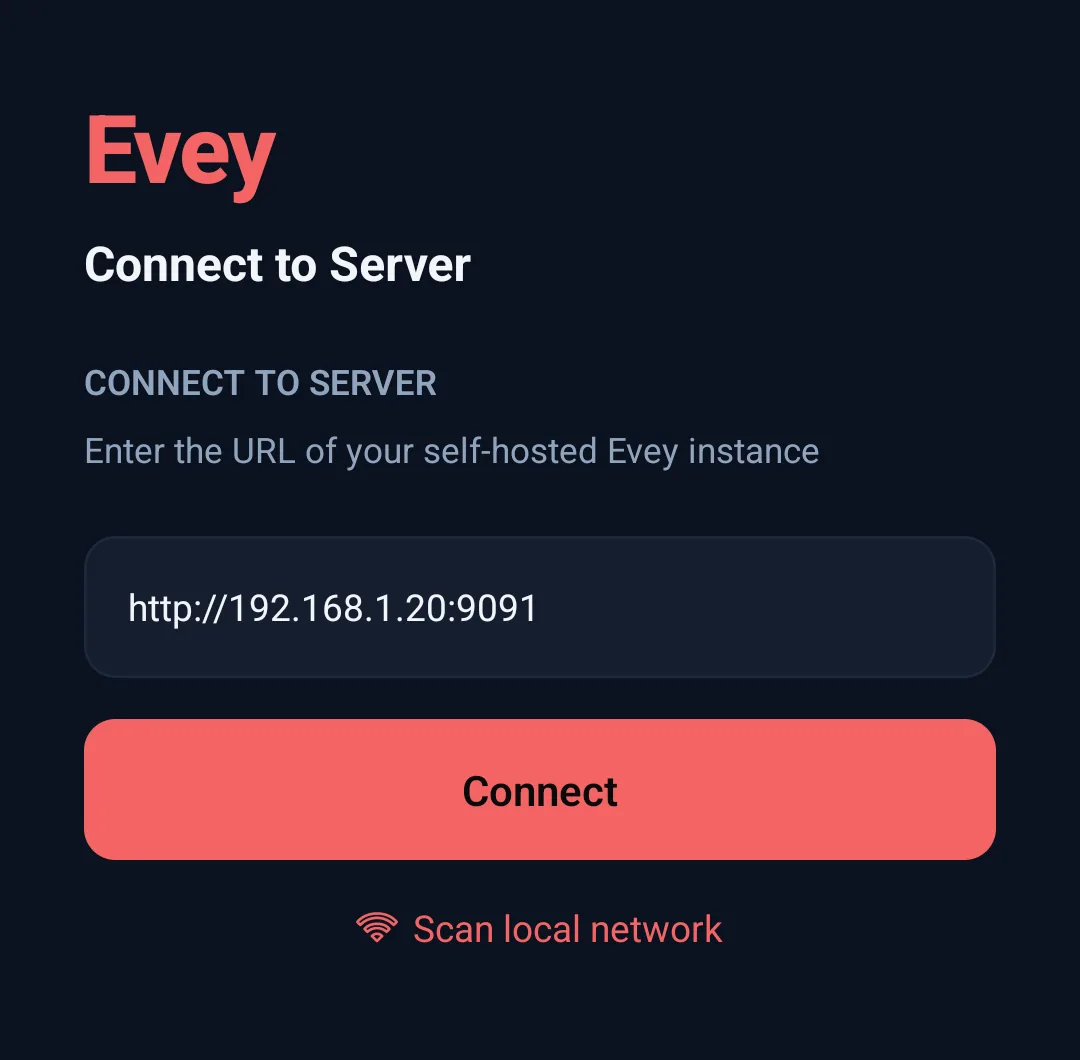
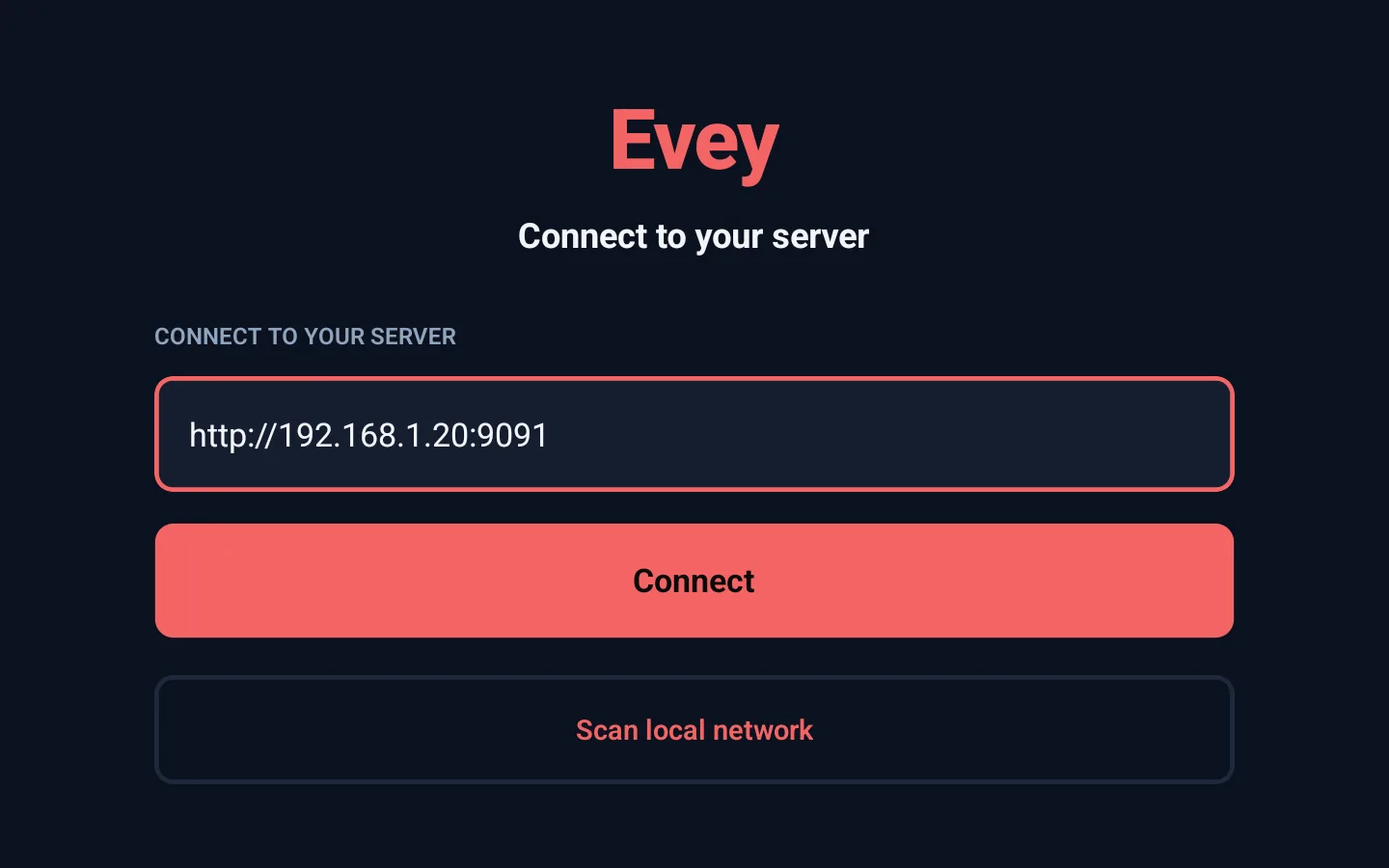
- The first screen says Connect to Server. Type the address in the
Server URL field, exactly as given: with
http://at the start and:9091(or another number) at the end. - Press Connect.
- Sign in with your username and password. On a TV, you can use Quick Connect instead.
- Choose your profile.
The address depends on where you are:
| Where you are | What to type |
|---|---|
| At home, on the same Wi-Fi as the server | The home address, for example http://192.168.1.20:9091. A name also works if your router knows it, for example http://nas:9091. |
| Away from home | The public address, starting with https:// and usually without a port, for example https://evey.example.org. It exists only if the person who runs Evey has set it up. |
Type nothing after the port: no /api, no other path. A / at the end is
removed for you.
For the person who runs the server: where the address comes from
- The IP is the one of the computer or NAS running Evey, on your home
network. Find it in your router's list of devices, or on that machine
(
ip aon Linux,ipconfigon Windows,ifconfigon macOS). It is never the phone's own IP. - The port is the number on the left of the
ports:line in your compose file:9091with the file from Install. http://is normal at home.https://is only for the public address, set in Admin → Remote Access → External URL: see Remote access and HTTPS.
As long as no server is saved, the connect screen also explains what is asked (Evey runs on a server someone set up for you. Enter its web address - the same one you open in a browser.) and offers Where do I find my server's address?, which leads to this page. The phone opens it in the browser; the TV writes the page's address on screen, to open on another device.
Scan local network: what it finds and what it does not
Scan local network, under the field, looks for an Evey server at home for you. It can take up to a couple of minutes. Each server found is listed with its name, its address and its version. Tap one to fill in the field, then press Connect. If nothing is found, the screen says No server found on this network - enter the address below: type the address yourself.
The scan does not find a server when the phone is on mobile data, on a guest Wi-Fi, or on another network than the server.
Exactly what the scan tries
It tries http:// on every address of four common home networks
(192.168.1.x, 192.168.0.x, 10.0.0.x and 172.16.0.x, hosts 1 to
254), on ports 9091, 8096 and 8920, fifty at a time, with a
2-second wait each. So it also misses a server on another network range
(192.168.2.x, 10.1.x.x...), on another port, or reachable only over
HTTPS. The apps do not use mDNS or Bonjour, and do not read the phone's
own network range: these four ranges are fixed.
When the connection fails
Every failure opens a box titled Connection failed. Find the message in this table:
| Message (Android) | What it means | What to do |
|---|---|---|
| Start the address with http:// or https://. | The address has no http://. |
Type http:// before the address. |
| This connection is not encrypted | You typed http:// for an address outside your home. Your password and the video would cross the internet unprotected. |
Press Cancel and use the https:// public address. Connect anyway is there if you know what you are doing. |
| No response from ... within 8s. | Nothing answers at that address. | Check that the server is on, that the address and the port are right, and that the phone is on the same Wi-Fi. |
| Couldn't reach ... | Wrong address or port, http/https mixed up, or another network. |
Same checks. At home, try http:// instead of https://; for a public address, the other way round. |
| TLS/certificate problem reaching ... | The server's HTTPS certificate is not accepted. | At home, use http://. For a public address, the server needs a proper certificate. |
| ... answered "HTTP 404 ..." instead of a healthy Evey server. | Something answers, but it is not Evey: there is a path after the port, or another program uses that port. | Remove everything after the port, and check the port number. |
| ... answered, but it is not an Evey server. | Another page answered: a Wi-Fi login page, your internet provider's page, or another program. | Check the address. On a public Wi-Fi, sign in to its login page first. |
| Remote access disabled | You are outside the home, and the server does not accept connections from outside. | Ask the person who runs Evey. They turn it on in Admin → Remote Access: Remote access and HTTPS. |
On Android TV the messages are shorter: Server returned 404 when
something other than Evey answers, and the raw network error when nothing
answers. The causes and the checks are the same. The TV also needs the
http:// (a bare 192.168.1.20:9091 fails), but it does not warn about
http:// towards a public address.
If the server does not answer when you open the app later, the app comes back to this screen and lists the saved server. On the TV, it adds Your server did not answer. It may be asleep or off the network. Once the server is back on, choose it again.
Changing or adding a server later
Both apps can remember several servers. The connect screen lists them under Your servers, with the one in use marked Current (Android) or Active (Android TV), and Add another server below. Tap a saved server to reconnect without typing the address again. Each server keeps its own sign-in.
- Android. On the connect screen, each saved server has a delete button (you confirm, and its sign-in is cleared). The sign-in screen has Change server. Once signed in, Settings → Servers opens Manage Servers: tap a server to switch to it, Rename it, or Delete it. You cannot delete the only saved server.
- Android TV. Settings → Change server signs the TV out and goes back to the connect screen; the sign-in screen has the same button. On the connect screen, Manage Servers renames or deletes a saved server.
On a television's web browser
A television without Android TV can still play Evey in its own web browser.
The server has a page made for it, driven by the remote: open the server's
address followed by /tv, for example:
- No server address to enter. The page belongs to the server it was opened from. Sign in, with Quick Connect or your password, then choose your profile.
- Television interface. If the page asks this question, choose Stay
here. Open the web version is for a computer, and the browser
remembers the answer. If it was chosen by mistake, open the address with
?client=tvat the end (http://192.168.1.20:9091/tv?client=tv) and keep that one as the bookmark. - Full screen. Where the TV's browser offers to add the page to the home screen, it then opens full screen, like an app.
- The remote. The arrows move, OK chooses, Back goes back. In the player, OK shows the bar and pauses, left and right seek (each press adds to the jump, holding the key scrubs with a picture), down opens the settings (audio, subtitles, quality, speed, chapters), and Back leaves. The play, pause, rewind and fast-forward keys work when the TV passes them to the browser.
- Text too small or too large. Settings → Interface size.
Quick Connect: signing in a TV without typing a password
Typing a password with a remote is slow. Quick Connect lets you approve the TV from your phone or computer instead.
- On the TV's sign-in screen, choose Quick Connect (marked Recommended for TV). The TV shows a 6-character code, a QR code, and how long the code is valid.
- Approve the code from a device where you are already signed in, in one of
these ways:
- In a browser: Settings → Quick Connect, type the code in Device Code, press Authorize Device.
- In the Android app: Settings → Quick Connect, then Scan QR Code with the camera, or type the code and press Authorize Device.
- With the phone's camera: scan the QR code. It opens the server's Quick Connect page in the browser. If you are signed in there, the code is already filled in; if not, sign in first, then type the code.
- Within a few seconds, the TV is signed in to the same account.
The Android app's sign-in screen offers Quick Connect too, for a phone where you would rather not type your password.
What each app adds
- Web. Keyboard shortcuts in the player (press
?to list them), notifications in the browser (see Notifications), and the admin panel. - Android.
- Downloads, to watch without a connection. A downloaded title stays
playable for 30 days without contacting the server. It only opens for
profiles allowed to see it: a kids profile cannot open a film
downloaded by another profile if it is above its age limit. When the
administrator turns it on, the app also offers a smaller copy, prepared
by the server, for a film too large for the phone
(
downloads.quality_choice, see Playback delivery and downloads). - Casting to a Chromecast.
- Downloads, to watch without a connection. A downloaded title stays
playable for 30 days without contacting the server. It only opens for
profiles allowed to see it: a kids profile cannot open a film
downloaded by another profile if it is above its age limit. When the
administrator turns it on, the app also offers a smaller copy, prepared
by the server, for a film too large for the phone
(
- Android TV. A screen made for the remote.
- Television browser (
/tv). The same kind of screen for the remote, in the TV's browser, with no Cast button.
Play on, in the web and Android players, sends what you are watching to another Evey app that is open and signed in to the same account. Playback continues there.
Keeping the apps up to date
When your Android or Android TV app is older than the version that goes with your server, it tells you:
- the Android app shows Update available: and the version at the top of the screen (never over the video);
- the TV shows it in its top bar.
Press it to open the app's Play Store page. The Play Store does not always
update apps by itself (only when the device is idle and on Wi-Fi, and it can
be turned off), which is why this notice exists. When the app is up to date,
or the server is older than this feature, nothing is shown. The web app and the
/tv page never need an update: the server provides them.
Which device plays what
Each app tells the server what its device can play. For each title, the server then decides whether to send the file as it is or to adapt it. So the same film can go untouched to a TV and be converted for an older phone. The player's Stream info panel shows what was decided and why: see How playback is decided. Casting has its own rules: see Casting.