Plugins
This page is for the administrator: how to install a plugin or a theme, what you accept when you do, and what the server lets it touch on your host. Everything happens in Admin → Plugins; the pages for plugin authors are listed at the end.
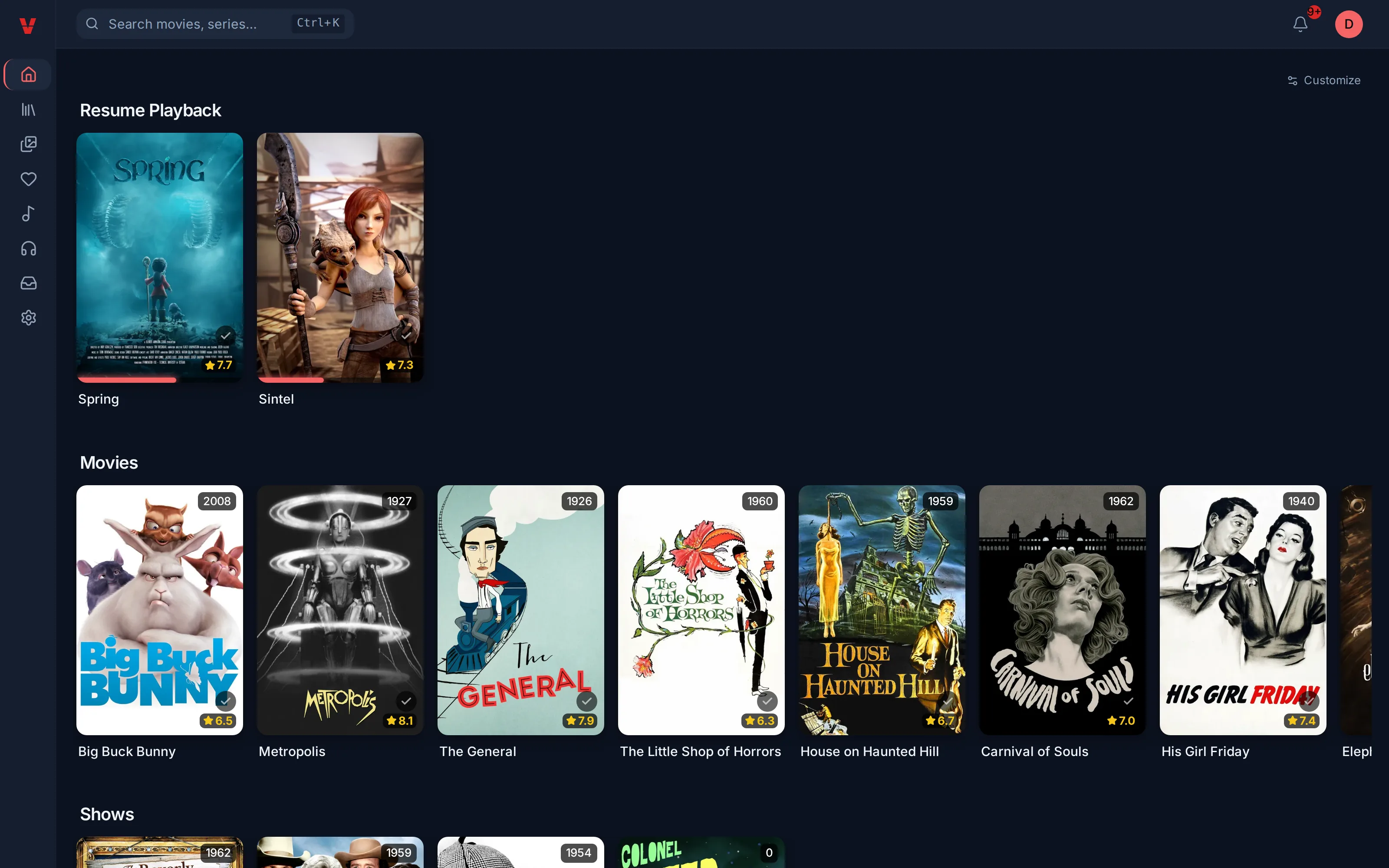
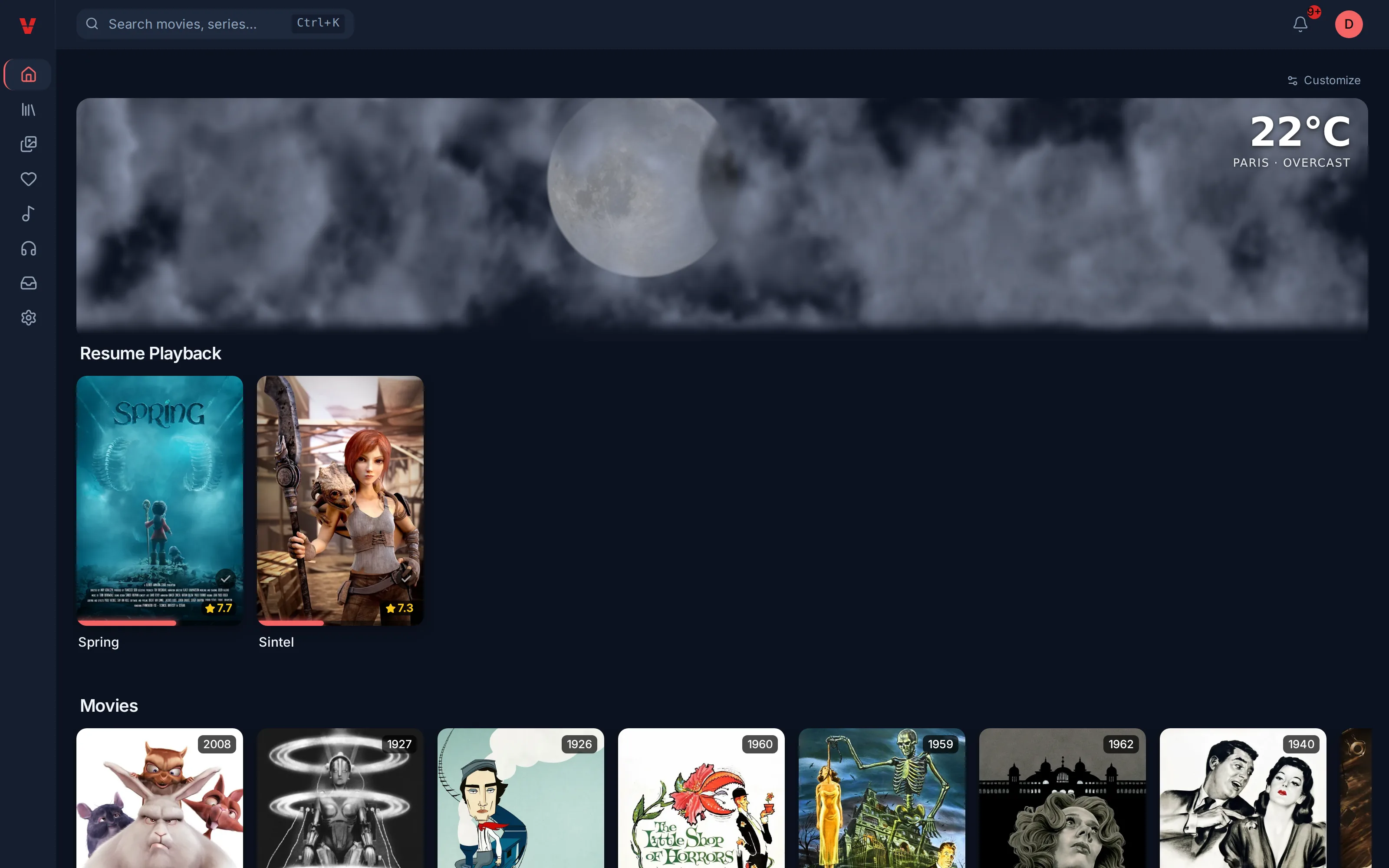
A plugin adds to Evey what it does not do by itself: a section on the home page, an overlay in the player, a metadata source, a theme. Each plugin is a separate process that talks to the server through a local socket, confined by a sandbox and limited to the permissions its manifest declares. Its interface, when it has one, runs in an isolated frame of the page.
Install a plugin
- In Admin → Plugins, open Install Plugin and choose the Plugin
file (.zip). If the author ships a signature, add it in Signature file
(.zip.sig, optional). The From URL tab installs from a link instead;
append
#sha256:<hash>to the URL to have the download checked. - Preview & Install analyses the package without installing it. The preview shows the Permissions and Capabilities the plugin asks for, the result of the Static Analysis and, when a signature was given, the Signature verdict with the publisher. The slots and the hosts are shown at update and on the Security Dashboard.
- Read that list as the contract: those are the only things the plugin will be able to do. Confirm, and the plugin starts.
A package whose analysis finds a critical pattern is refused, whatever you
answer. Warnings are shown and left to you. The plugin's language must be
among the Available Runtimes of the server: the default image ships
Python, Node.js, PHP, Ruby and Lua; the -nodejs image keeps Python and
Node.js and the -lean image keeps Python only.
Signed plugins
A plugin author can sign the ZIP with cosign;
the author's public key travels inside the package. Evey checks the
signature on its own (no cosign binary) and tells you Signed by
With warn, the verdict is shown and nothing is blocked; with enforce,
only trusted publishers install. Authors: see
Sign your plugin.
Update a plugin
On the plugin's card, Update from source… takes the new ZIP (a path or a URL) and shows the same preview. An update must carry a higher version than the installed one. When it asks for new permissions, capabilities, slots or hosts, the preview says This update requests new permissions and lists the difference: nothing is applied until you choose Approve and install. The package analysed is the package installed: its hash is checked again when the update is applied.
Manage the installed plugins
Each card shows the plugin's state (Enabled or Disabled) and offers:
| Action | What it does |
|---|---|
| Enabled / Disabled | Starts or stops the plugin's process. A disabled plugin keeps its files and its configuration. |
| Config | The settings the plugin declares (an API key, a city, a unit...). Secret fields are shown masked and are never sent back to the browser. |
| Logs | The last lines the plugin wrote through the host. |
| Uninstall | Removes the process, the files and the plugin's stored data. |
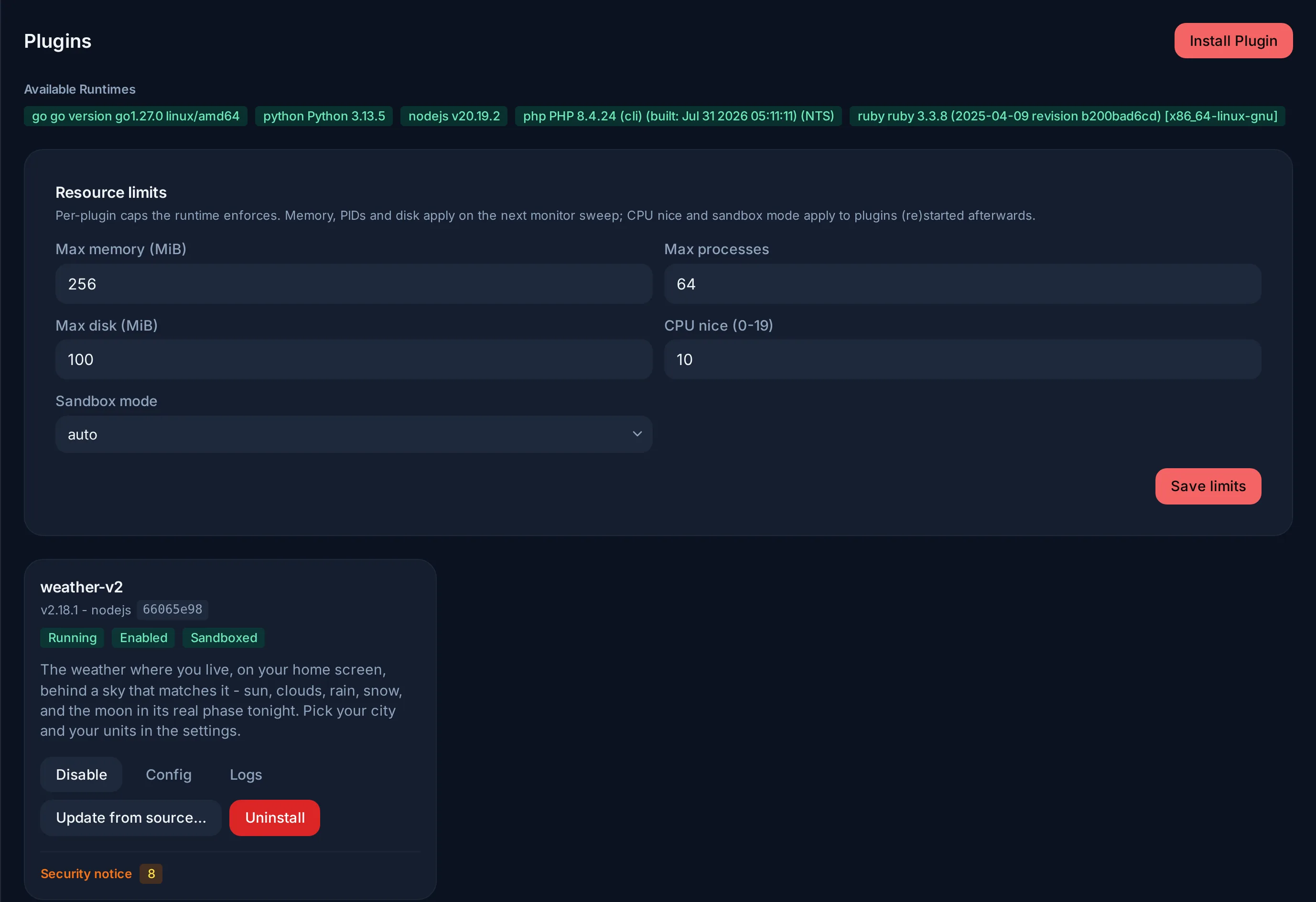
Resource limits, at the top of the page, caps every plugin process. The values in the panel are the defaults; the environment variable sets them when the panel has never been saved.
| Field | Default | Environment variable |
|---|---|---|
| Max memory (MiB) | 256 | EVEY_PLUGINS_MEMORY_MB |
| Max processes | 64 | EVEY_PLUGINS_PIDS_MAX |
| Max disk (MiB) | 100 | EVEY_PLUGINS_DISK_MAX_MB |
| CPU nice (0-19) | 10 | EVEY_PLUGINS_CPU_NICE |
| Sandbox mode | auto |
EVEY_PLUGINS_SANDBOX_MODE |
Memory, processes and disk apply at the next sweep of the monitor, which stops
a plugin that exceeds them; the CPU priority and the sandbox mode apply to
plugins started afterwards. 0 restores the default for memory and processes; only the disk limit treats
0 as off.
The Security Dashboard keeps, per plugin, the findings of the analysis, the
signature result and the last error. Its Host sandbox line shows the
sandbox mode actually in force on this machine: if it reads basic, the host
offers no per-path filesystem isolation, and
Plugin sandbox setup explains what to change.
Plugins are enabled by default. EVEY_PLUGINS_ENABLED=false turns the whole
subsystem off.
What a plugin can do on your host
Whatever its manifest says, a plugin:
- sees its own directory, not the server's data nor the media files;
- has no direct network access: a plugin with the
networkpermission reaches only the hosts it declared, through the server, withGETandHEAD; - cannot start child processes unless it declares
subprocess; - runs under the resource limits above and, when the host allows it, under a separate user.
Its interface is confined to the slots the manifest declares: a section or the
hero area of the home page, a sidebar panel in a library or on a detail page,
an overlay of the player, the appearance settings, the bottom of the
navigation sidebar, or one entry in the admin menu that opens the plugin's own
page. A plugin can never draw into the sign-in, setup, security or existing
admin screens. In its frame, it has no access to the page, your cookies or
your session: what it reads from the server goes through a short-lived token
limited to the two permissions it may ask for (public for a safe projection
of media titles and posters, prefs for the current user's preferences in its
own namespace).
The permissions a plugin can ask for are listed in Permissions and slots. How the sandbox works, and what it still cannot prevent, is in Plugin sandbox and threat model.
The server checks where a plugin talks, not what it says
Once a host is on a plugin's list, the server cannot inspect what the plugin sends to it. Review a third-party plugin before installing it, as you would any software, and treat its host list as the list of parties that may receive your library's titles.
Themes
A theme is a package of kind: theme with no process: a stylesheet, and
optionally a script confined to a hidden frame. It is installed from the same
Install Plugin dialog; the stylesheet is sanitized at install. Each user
then picks it under Settings → Appearance → Theme. What a theme may
contain is described in Themes.
Writing a plugin
| Page | Contents |
|---|---|
| Writing a plugin | A first plugin step by step, the install loop, signing, distribution. Start here. |
| Plugin API reference | The manifest, the backend calls and data store, the evey.* bridge of the interface. |
| Permissions and slots | What a manifest may declare, what is checked at install, the external fetch rules, the slots. |
| Themes | Restyling the interface with CSS and a sandboxed script. |
| Webhooks and API keys | Integrating Evey with other tools without writing a plugin. |